
TikTok's native scheduler quits the moment you add a second client
Run one TikTok account and the built-in scheduler is fine. You upload from the web, pick a time, done. Add a second client and the cracks show. TikTok's web scheduler only queues one account at a time, caps you at 10 days out, and forces a desktop login for every switch. By client five you are logging in and out a dozen times a day, copying captions between tabs, and hoping nobody posted a fitness client's video to a fintech account by mistake.
The work is not the videos. The work is the account juggling around them. That is the part a real multi-account setup removes.
Why TikTok gets messy across multiple client accounts
Three things break at scale. First, access: every client hands you a separate login, and TikTok was never built for one manager holding ten of them. Second, timing: each account has its own audience and its own peak hours, so a single posting time you reuse across clients leaves traction on the table. Third, review: TikTok video is high stakes for a brand, and clients want to see the cut before it goes live, which means an approval step the native tool does not give you.
An agency-grade scheduler solves all three by treating each client as a walled-off workspace. You connect the client's TikTok account once inside a TikTok scheduler, and from then on every video for that client lives in its own space with its own calendar, its own approvals, and its own posting times.
How to schedule TikTok posts for multiple client accounts, step by step
Use this order every time you set up a new client's TikTok queue. It keeps videos in the right account and out of the wrong one.
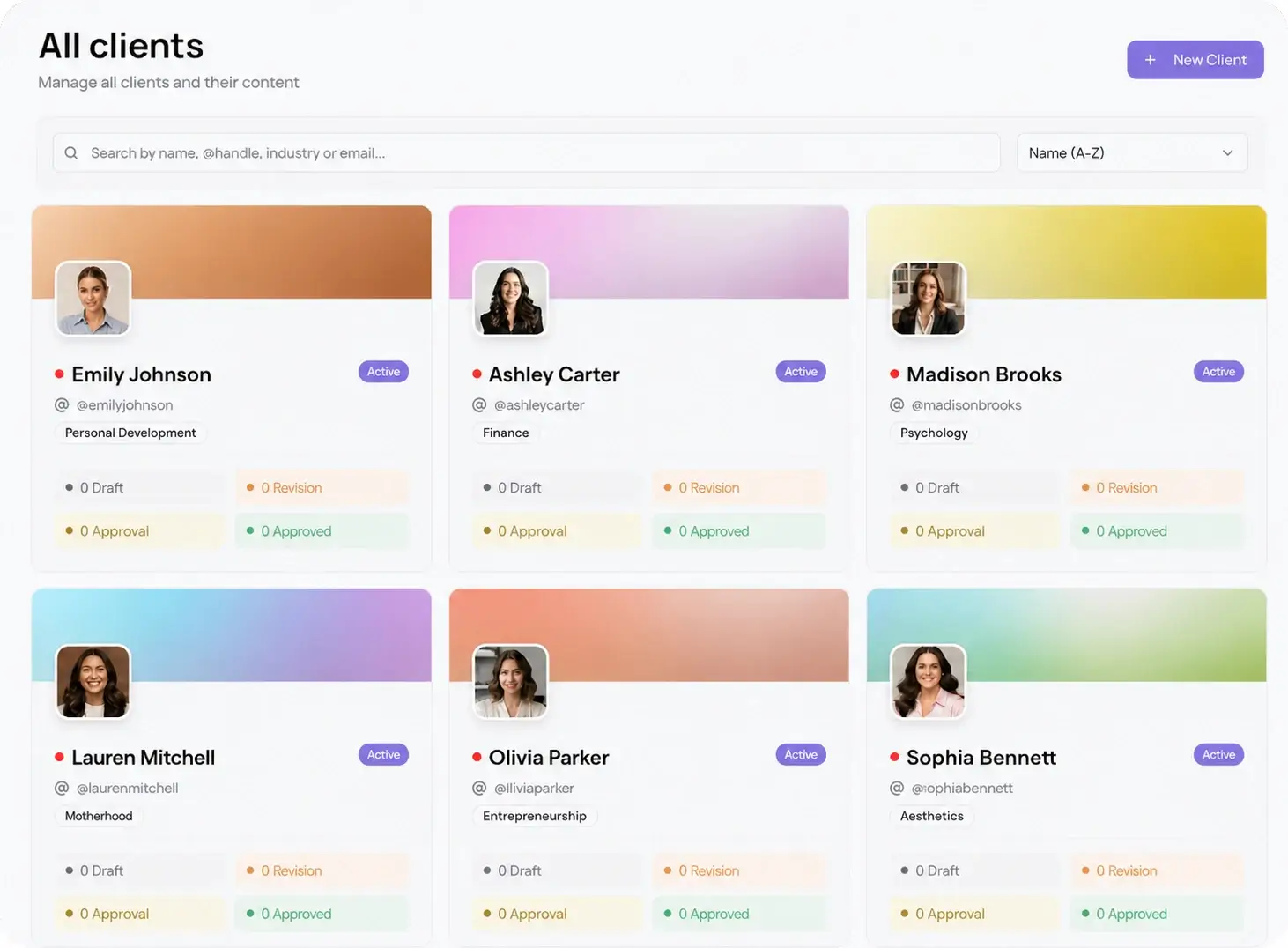
- Create a workspace per client. One space holds that client's TikTok account, brand assets, and posting rules, so a teammate inherits the context instead of relearning it.
- Connect the client's TikTok account inside multi-client management. Do this once per client and you never log in and out again.
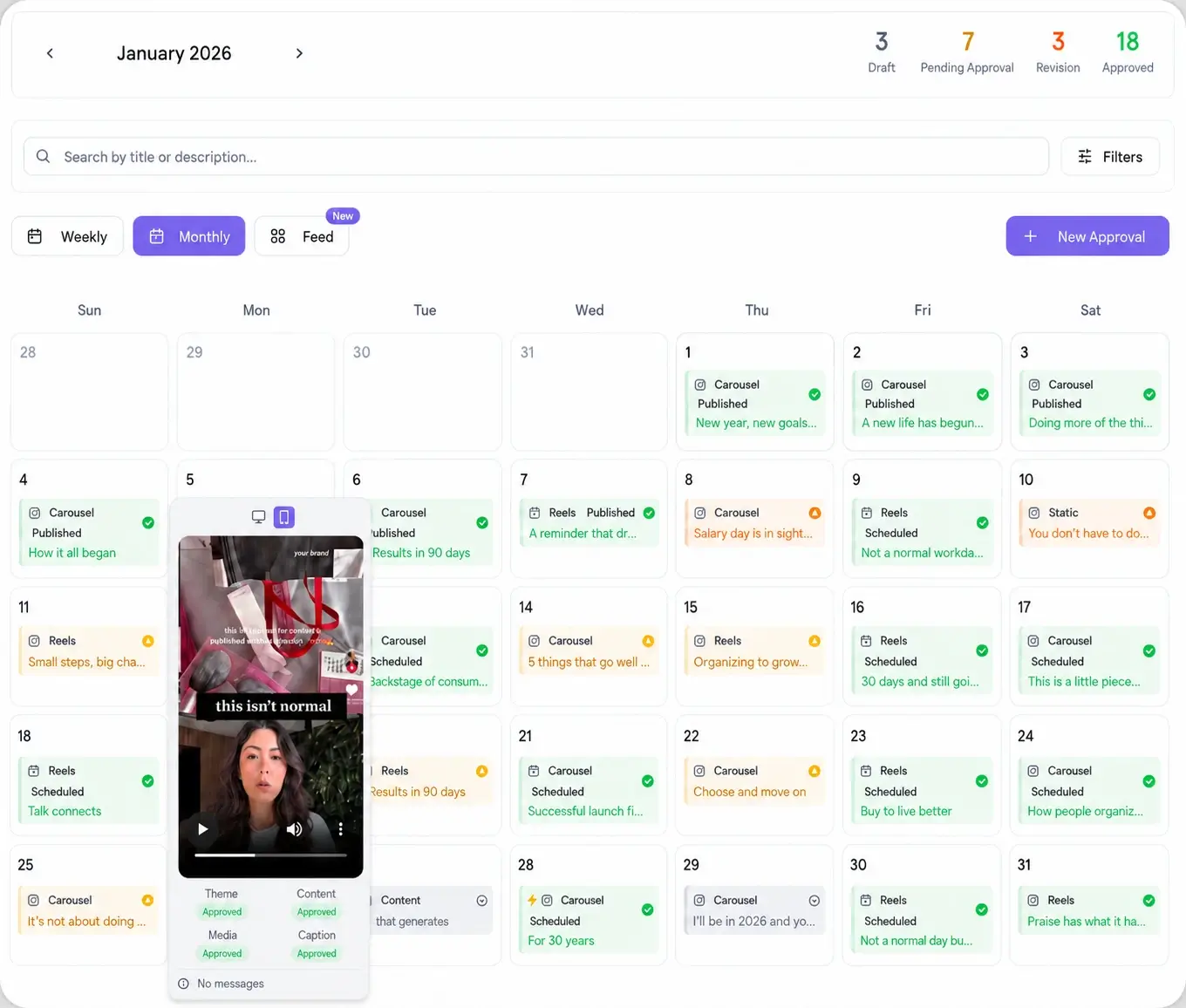
- Batch the month. Load the videos, write native captions, add sounds and hashtags, and drop each one onto the client's calendar in a single sitting.
- Set each post to that account's peak, not a global average. Pull the account's own best time to post data and schedule to it.
- Send the queue through a client approval workflow. The client opens one password-less link, watches each cut, and approves or comments. No account, no login.
- Let approved videos auto-publish. Each one posts to the right TikTok account at the set time, and you cross-post the same idea to the other 9 platforms in the same 15 seconds.
What about TikTok's built-in scheduler?
It is worth using for a single account run from a desktop. TikTok lets you schedule a video up to 10 days ahead from the web uploader, and that costs nothing. The limits are structural, not something a workaround fixes. You cannot see two client accounts side by side, you cannot batch past 10 days, there is no client approval step, and there is no shared calendar for your team. For an agency, those gaps are the whole job. So the native tool is a fine backup for one account and a dead end for a client roster.
Keep approvals and posting in one place
The reason agencies fold TikTok into a single dashboard is not just tidiness. It is that TikTok is one line item in a wider client plan. The same brand runs Instagram, YouTube Shorts, and often LinkedIn, and a TikTok video usually starts life as a cut that also feeds those channels. When TikTok sits in the same composer as the other nine networks, you schedule the whole client month at once, approve it through one link, and reformat one idea for each platform instead of rebuilding it four times. See the full list of 10 integrations to plan the rest of the calendar around it.