
One login works. Ten logins do not
A single account is easy. You open Meta Business Suite, upload the slides, set the schedule, and move on. Add a second client and the model starts to crack. Business Suite schedules one connected account at a time, each account sits behind its own login, and there is no way for the client to review the carousel before it goes public. By the fifth client you are copying the same caption between tabs, re-uploading slide decks one account at a time, and hoping you did not queue a fitness brand's carousel on a law firm's grid.
The carousels are not the slow part. The account juggling around them is. That is the work a proper multi-account setup takes off your desk.
Why Instagram carousels get harder across multiple client accounts
Three things break as the roster grows. First, access: every client owns their account and hands you a separate login, and Instagram was never built for one manager holding a dozen of them. Second, review: a carousel has up to 20 slides, and clients want to see the whole deck, the caption, and the first-slide hook before it publishes, which native scheduling does not offer an outside manager. Third, timing: each account has its own audience, so one publish time reused across every client leaves early saves on the table.
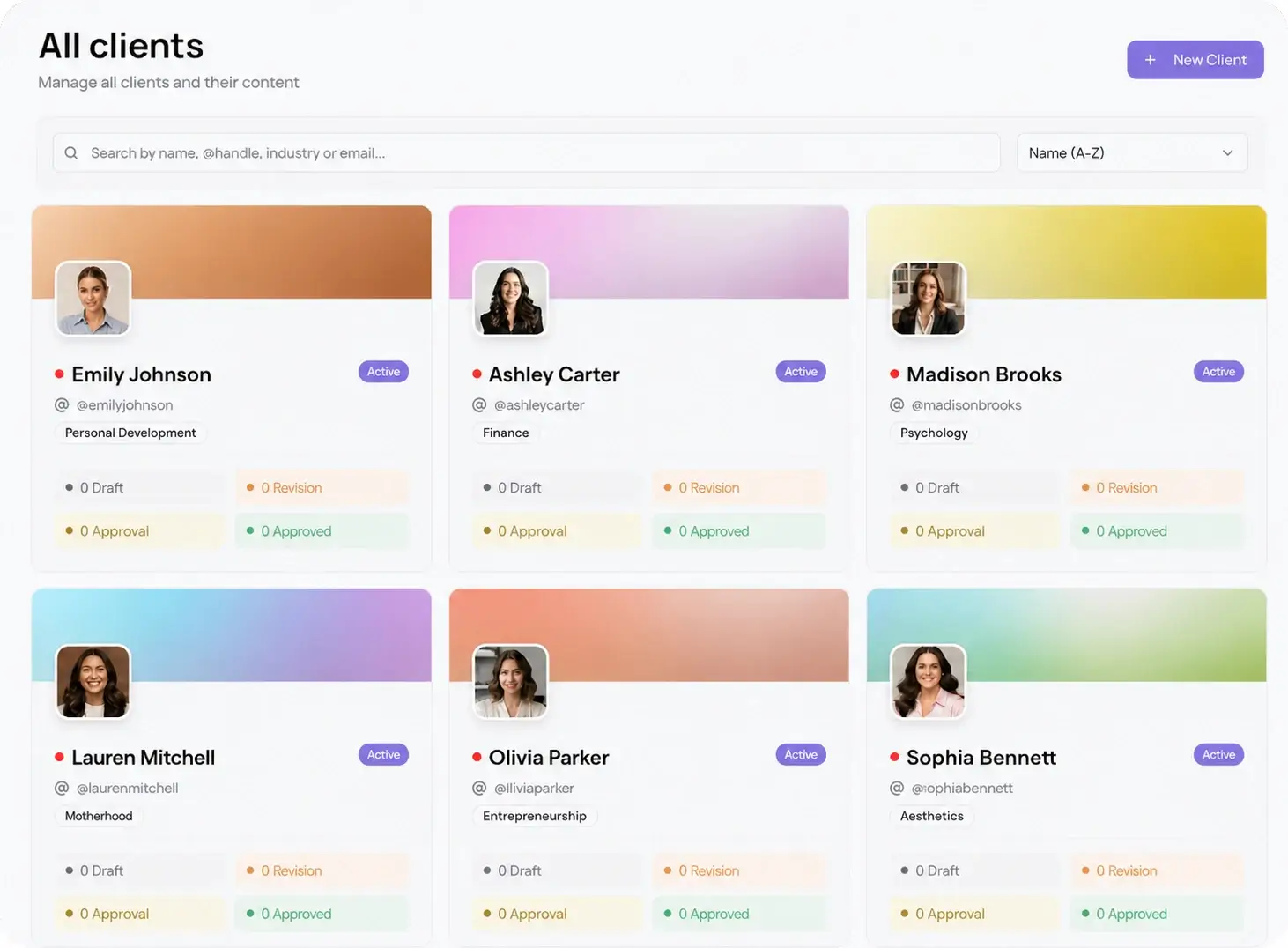
An agency-grade scheduler solves all three by treating each client as a sealed workspace. You connect the account once inside an Instagram scheduler, and from then on every carousel for that client lives in its own space with its own calendar, its own approvals, and its own publish times.
How to schedule Instagram carousels for multiple clients, step by step
Run this order every time you set up a new client's carousel queue. It keeps each deck on the right account and off the wrong one.
- Create a workspace per client. One space holds that client's Instagram account, brand assets, and posting rules, so a teammate picks up the context instead of relearning it.
- Connect the client's Instagram account inside multi-client management. Do it once per client and the tab-switching stops for good.
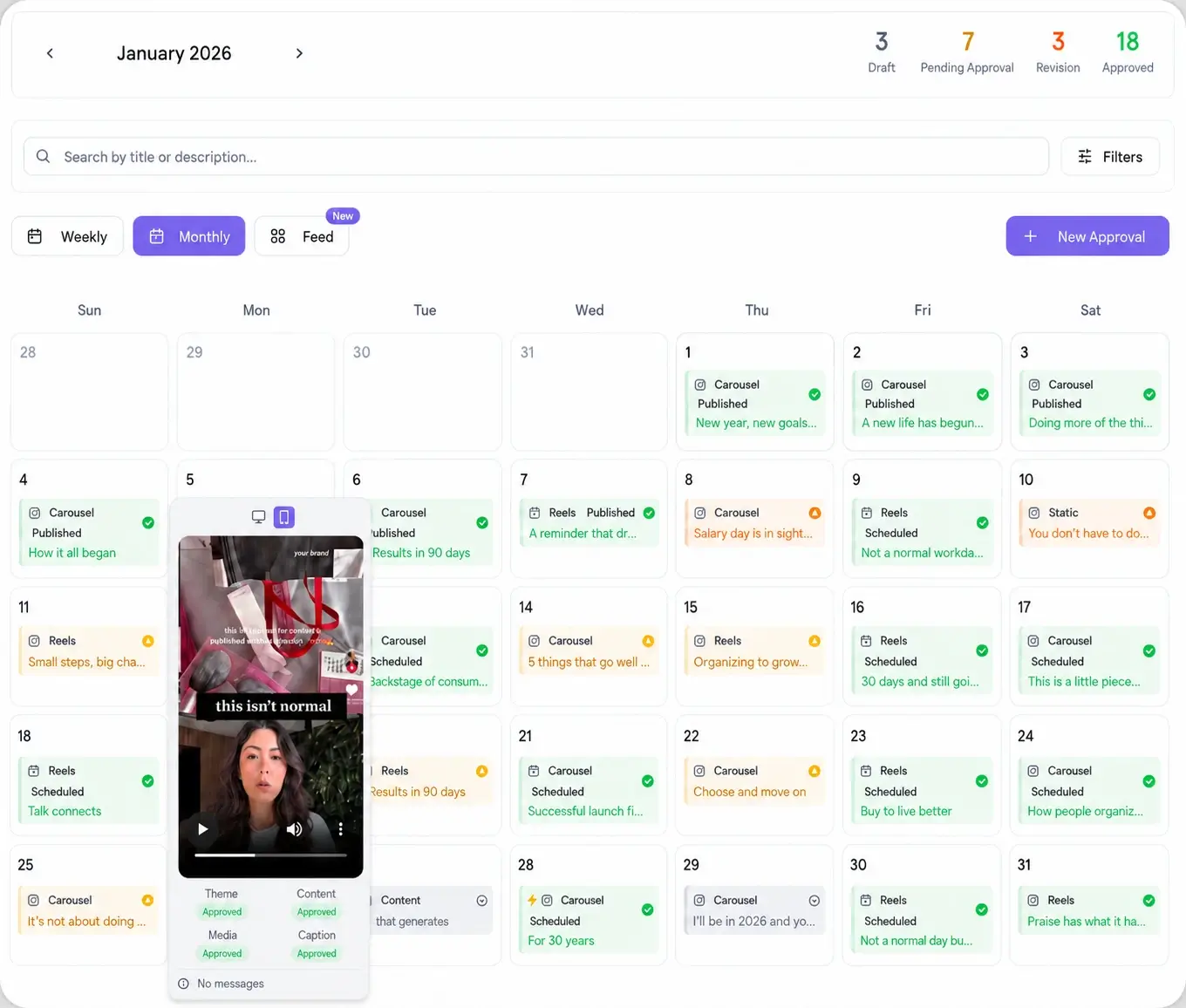
- Build the month. Upload each carousel's slides in order, size them to a single ratio, write the caption and the first-slide hook, and drop each post onto the client's calendar in one sitting.
- Schedule to that account's peak, not a global average. Pull the account's own best time to post data and set each carousel to it.
- Send the queue through a client approval workflow. The client opens one password-less link, swipes the full deck, reads the caption, and approves or comments. No account, no login.
- Let approved carousels auto-publish. Each one posts to the right account at the set time, and you cross-post the same deck to the other 9 platforms in the same 15 seconds.
Build the deck once, then keep every slide consistent
A carousel is a story people swipe, so the format has its own rules. Keep every slide at the same size, usually 1080 by 1350 portrait, so the post never crops mid-swipe. Make the first slide a hook strong enough to stop the scroll, since that slide alone decides whether anyone swipes past it. Close on a clear call to action rather than a dead final frame. Save the deck as a template inside the workspace and the next month's carousel starts from a set layout, which matters most when two people on your team build for the same client. When the caption needs a platform-native rewrite for the version you cross-post, AI content formatting adapts it per network so the LinkedIn or Facebook version does not read like a copied Instagram caption.
Keep approvals and publishing in one place
Agencies fold Instagram carousels into a single dashboard because a carousel deck rarely stays on Instagram. The same slides often run as a LinkedIn document post, a Facebook carousel, and a Pinterest set, and the client wants one look before any of them go live. When Instagram sits in the same composer as the other nine networks, you schedule the whole client month at once, approve it through one link, and reformat one idea for each platform instead of rebuilding the deck four times. See the full list of 10 integrations to plan the rest of the calendar around it.